Modeling Enterprise Architecture with AI: Archi + Claude (MCP)
A field guide to using Claude as an AI agent that reads and edits your ArchiMate model in Archi via the Archi MCP server: setup, the HTTPS connector fix, and real workflows.

Mohammed Fellah
Enterprise Architect
Modeling enterprise architecture has always been slow, manual work: drop a box, draw a line, line it all up, repeat. What if you could simply talk to your model instead — and have it answer, and even build the diagrams for you?
That's now possible. Using the Model Context Protocol (MCP) and the free, open-source Archi MCP Server, you can connect an AI assistant like Claude straight to your ArchiMate model in Archi. You ask in plain language; it reads, creates, and lays things out — live, in your model.
This is a hands-on guide. No jargon, no hype. I'll explain what's going on, connect it with you step by step, fix the one error everyone hits, and share a few habits that keep it safe.
First, the simple idea
A normal AI chatbot can talk about architecture. An AI agent can actually work on it. The difference is tools — and MCP is what gives the AI those tools.
Picture MCP as a universal plug, a USB-C port for AI. Any app can offer its features through that plug, and any AI that understands MCP can use them. No custom wiring for each pair.
The Archi MCP Server is simply that plug for your architecture model. It's a small add-on for Archi (the popular, free ArchiMate tool), built by JS van Heerden and free to use. Once it's running, Claude can see your open model and act on it through 72 ready-made actions: searching, creating elements and links, building views, tidying layouts, even undoing its own changes.
The easiest way to picture it: Claude becomes a tireless junior architect who has memorized the entire ArchiMate rulebook. Fast and patient — but still working under you.
What you can actually ask it to do
Here are real things that now take a minute instead of an afternoon:
- Ask questions in plain English. “Which applications support Customer Onboarding, and which have no owner?” It finds the answer in your model — no clicking around.
- Build a diagram from a sentence. “Make a view of the payments value stream and put the supporting apps under each step.” It creates the view and arranges it.
- Spot the mess. “List applications with duplicate names or no connections.” Instant clean-up candidates.
- Write the boring docs. “Draft a one-line description for every capability that's missing one.” You review; it types.
The AI doesn't replace your thinking. It clears away the busywork so you can focus on the decisions only an architect can make.
What you need (about 5 minutes)
- Archi 5.7 or newer (free), with a model open.
- Java 21+ (Archi usually includes it).
- The Archi MCP add-on — a single
.archipluginfile from the Releases page. (Source and docs: GitHub repo · listing on MCP Market.) - Claude — either Claude Code (the command-line version) or Claude Desktop or Claude.ai. Both work; they just connect a little differently.
Step 1 — Install the add-on
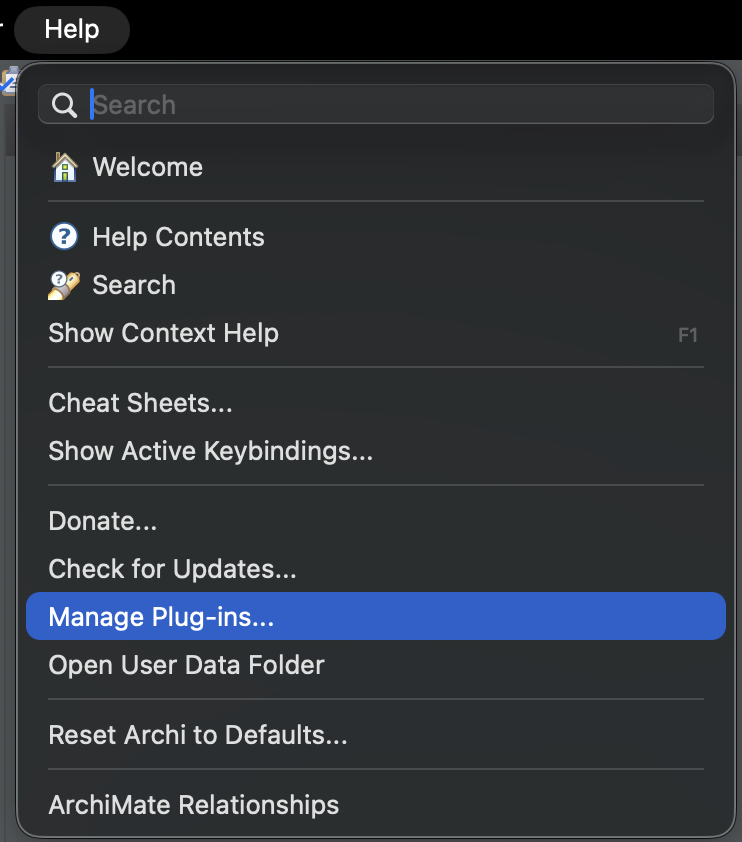
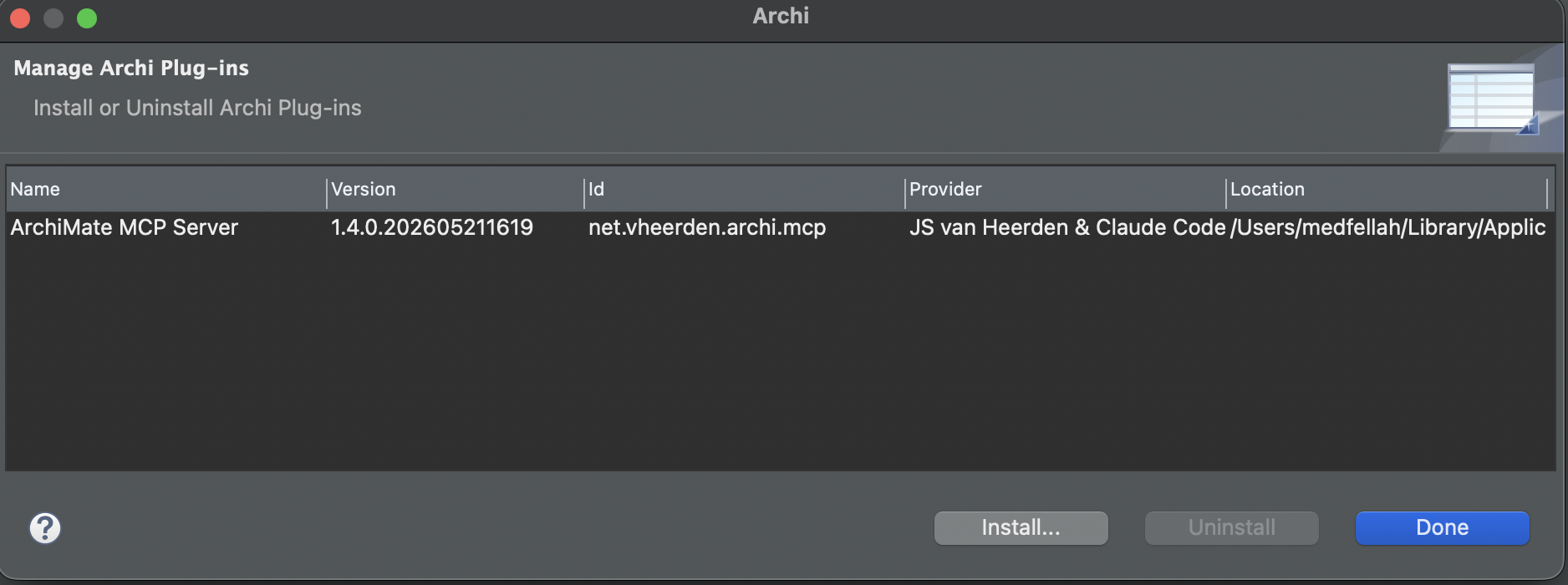
In Archi, go to Help → Manage Plug-ins → Install…, pick the file you downloaded, and restart Archi. When it reopens, you'll see a new MCP Server menu at the top. (You can confirm it under Help → Manage Plug-ins — it appears as ArchiMate MCP Server.)
Step 2 — Switch the server on
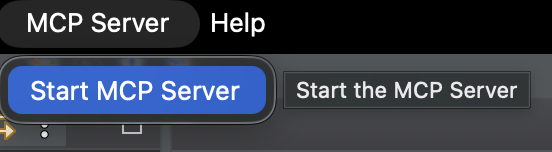
Open the model you want to work on, then click MCP Server → Start MCP Server. The menu changes to Stop MCP Server and shows an address: http://127.0.0.1:18090/mcp.

That 127.0.0.1 just means “your computer only” — nobody else can reach it. Safe by default.
Seeing “No model selected”? That's the app telling you to open a model first, then start the server again. The AI needs something to look at.
Step 3 — Connect Claude (the tricky bit)
There are two routes. Pick the one that matches your Claude.
Route A — Claude Desktop or Claude.ai (and the red-box error)
Most people start here, and most people hit a wall. You go to add a custom connector, paste http://127.0.0.1:18090/mcp, and the box turns red. The Add button won't budge.
It's not a bug. Claude's connector only accepts secure https:// addresses with a trusted certificate. A plain http:// on your own machine isn't allowed — on purpose, for safety. (Even the add-on's optional built-in HTTPS uses a “self-signed” certificate, which Claude also won't trust.)
The fix: put a secure https:// front door in front of your local server, then give Claude that address. The fastest way on a Mac is a free Cloudflare tunnel.
Does this resonate? Let's discuss your situation.
- Install it once:
brew install cloudflared - Run it next to Archi:
cloudflared tunnel --url http://127.0.0.1:18090
It prints an address like https://random-words.trycloudflare.com. Paste that into Claude, but keep /mcp on the end — for example https://random-words.trycloudflare.com/mcp. The red box clears and Add works. (Prefer ngrok? ngrok http 18090 does the same thing.)
Two things to remember: keep the tunnel running for the whole session, and note that its address changes each time you restart it — so update Claude's connector if you restart. The tunnel also briefly exposes your local server to the internet through that random link; for a local model that's low risk, but switch it off when you're done.
Route B — Claude Code (no tunnel needed)
If you use Claude Code (the command-line version), it's much simpler — it accepts a plain local address directly. One line:
claude mcp add --transport http archi http://127.0.0.1:18090/mcp
Everything stays on your machine, no tunnel. (Want Claude Desktop fully local instead? It needs uv and a small bridge called mcp-proxy — it works, but it's fiddlier, which is why I'd start with the tunnel or the command line.)
Step 4 — Try it
Start gentle and read-only. Ask: “Give me an overview of the model open in Archi.” If it's all connected, Claude comes back with the element counts, the list of views, and the shape of your model. That one answer proves three things at once: the server is on, the connection works, and a model is open.
Then build up slowly — ask it to find something, then create one element, then a small view. Watch how it works before handing over anything big.
A few habits that keep it safe
An assistant that can edit your model is powerful — and, used carelessly, messy. A few simple habits keep it on the rails:
- Make it ask before it writes. The add-on has an approval mode: the AI proposes a change, you say yes or no. Leave it on for anything real.
- Remember Undo. Every change goes through Archi's normal undo, so
undoalways works. You can also ask it to make changes as a single batch you can roll back at once. - Start by reading, not writing. Spend the first sessions just asking questions. Trust comes before edit access.
- Keep a backup. Save your
.archimatefile in version control (or Archi's coArchi). If a session goes sideways, you can roll back. - Let it draft, you decide. The AI nails the first 80% — the standard boxes, the first layout, the doc stubs. The last 20% — the right names, the judgment calls — stays yours.
One practical tip
Handling 72 tools at once is demanding for an AI. Small models get confused; a capable one (Claude's larger models) handles it smoothly. If the assistant seems to forget a tool exists, that's usually the model's size, not your setup.
Resources & downloads
- Archi MCP plug-in — Releases page (download the
.archiplugin). - Source & docs — GitHub repo · listing on MCP Market.
- Archi (ArchiMate tool, free) — archimatetool.com/download.
- Understand MCP — modelcontextprotocol.io.
- HTTPS tunnel — cloudflared or ngrok.
- Claude Desktop bridge — uv (with
mcp-proxy) · command line: Claude Code.
The bigger picture
It's tempting to hear “AI builds the model” as “AI replaces the architect.” It's the opposite. When the manual work shrinks to a sentence, the rare and valuable skill is the one that always mattered: knowing what to model, why, and how far to go.
Spend one afternoon with Claude wired into Archi and the shift is obvious. You stop being the person who draws the diagram and become the person who directs it. That's a better job — and now a realistic one.
Key Takeaways
- 01MCP is a “universal plug” for AI; the Archi MCP add-on uses it so Claude can read and edit your open ArchiMate model through 72 ready-made actions.
- 02Install via Help → Manage Plug-ins, then MCP Server → Start MCP Server; the address is http://127.0.0.1:18090/mcp and stays on your computer.
- 03Claude Desktop's connector blocks plain http:// on purpose — put a free Cloudflare or ngrok HTTPS tunnel in front and keep /mcp on the end.
- 04Claude Code (command line) connects to the local address directly, with no tunnel.
- 05Keep approval mode on, rely on Undo, start read-only, and back up your .archimate file.
- 06The AI removes the busywork; deciding what to model and why is still the architect's job.
Tools & Frameworks
Mohammed Fellah
Enterprise ArchitectSharing insights from years of hands-on enterprise architecture experience. No theory without practice.